Change Your Background
WindoM starts with a set of built-in photos and needs nothing from you. You can switch to your own images, or to photos from Unsplash. The choice is under Settings → Background → Background Source.
 morning
 afternoon
 evening
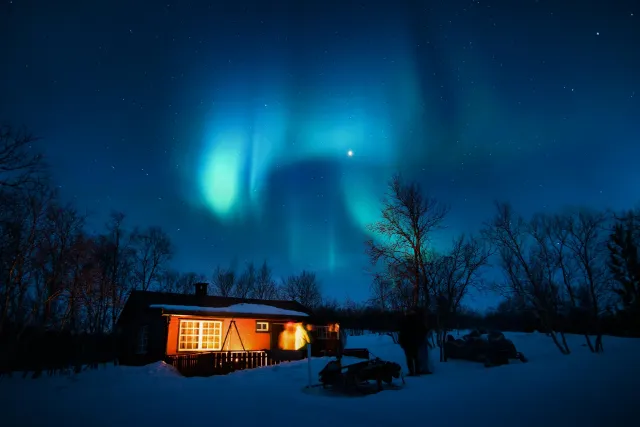 night
Option A - Built-in and your own images#
Open Settings → Background tab and set the source to Local Image. This is the default.
Pick one of the Built-in photos, or click the upload button and choose an image from your device. Uploaded images are stored locally - never uploaded anywhere - and the most recent ones stay listed under Local Photos so you can switch back.
Option B - Unsplash photos#
Open Settings → Background tab and set the source to Unsplash.
Unsplash needs an access key of your own, which is free. Go to unsplash.com/developers, create an app, copy its Access Key and paste it into Unsplash Access Key. Without a key a gradient is shown instead of a photo.
Optionally, paste a Collection ID from Unsplash to curate the photo style. Left empty, you get random nature photos. To find a collection ID: go to unsplash.com/collections, open any collection, and copy the number from the URL - e.g. unsplash.com/collections/4324303/...
How it works#
The photo sits behind everything on the new tab, under a light dark overlay that helps the clock and widgets stay readable. Which photo appears depends on Background Source:
- Local Image shows the photo you last picked or uploaded. If you have never picked one, it shows the first built-in photo.
- Unsplash asks Unsplash for one random landscape photo using your access key, and keeps it for 24 hours. The first new tab you open after that fetches a new one. Photos from a collection you named come from that collection; otherwise the search is for nature.
If an image cannot be loaded, WindoM falls back to a built-in gradient so the page is never blank.
Every setting explained#
- Background Source - Local Image (default) or Unsplash.
- Unsplash Access Key - empty by default. Required for the Unsplash source. Without it a gradient is shown and a notice appears in Settings.
- Unsplash Collection ID (optional) - empty by default. Limits Unsplash photos to one collection.
- Upload local background - the upload button on the Local Image source. It accepts image files up to 5 MB.
- Built-in - the photos that ship with the extension.
- Local Photos - your recent uploads. The list holds up to 5; a sixth upload removes the oldest one. Each upload has a heart to like it and a delete button.
- Unsplash Photos - on the Unsplash source, Recent lists photos WindoM has fetched for you (up to 50, newest first) and Liked lists the ones you have hearted. Click a photo to make it the current background.
Photo credit and liking photos#
When an Unsplash photo is showing, a credit line appears on the page naming the photographer and linking to their Unsplash profile and to Unsplash itself. The heart beside it likes the photo so it is kept under Liked in Settings. Built-in and uploaded photos show no credit line.
Where your data is stored and what leaves your device#
- Uploaded images are stored in Chrome's local extension storage on this device. They are not uploaded to WindoM or anywhere else. A small thumbnail of each is kept for the list.
- Unsplash photos are the only thing that leaves your device. WindoM sends a request to
api.unsplash.comwith your access key, and then your browser loads the image itself. This happens only when the Unsplash source is selected. - Per account. When you are signed in, your current uploaded background is stored under your account on this device, so different accounts in the same browser do not see each other's background. A background you set before signing in is copied to your account the first time you sign in.
The privacy policy lists every service the extension contacts.
Tips and good setups#
- Use a dark or low-contrast image if you keep the default white clock; bright photos make light text harder to read.
- To keep a particular look, stay on Local Image and upload a photo you like. It stays until you choose another.
- To get a steady style from Unsplash, set a Collection ID. Heart the photos you want to find again, since the Recent list is capped at 50.
- Large photos are easiest to manage after being resized to roughly your screen size, because uploads over 5 MB are rejected.
Common questions#
Do I need an Unsplash account?#
You need an Unsplash developer app to get an Access Key, as described above. The built-in photos and your own images need nothing.
Does the Unsplash photo change on every new tab?#
No. The current photo is kept for 24 hours. Picking a photo from Recent or Liked makes it the current one.
Which image types can I upload?#
Any file your browser reports as an image, up to 5 MB. Anything else shows the message Please select a valid image file.
Troubleshooting#
- A colorful gradient instead of a photo. On the Unsplash source this means there is no key, or the request failed. Open Settings → Background and read the notice above the key field.
- Invalid API key - check your Unsplash Access Key. Unsplash rejected the key. Check that you copied the Access Key from your Unsplash app and pasted it whole.
- Unsplash rate limit reached. Try again later. Unsplash limits how many requests a key can make. Wait, or switch to Local Image in the meantime.
- Image too large. Maximum size is 5MB. Resize or compress the photo and upload it again.
- Still stuck? See Support.
Related pages#
- Clock, date and greeting - match the clock color to your photo
- Layout templates - preset arrangements of the widgets over your background
- Create a WindoM Account - what signing in adds
Back to the User Guide