Clock, Date & Greeting
Overview#
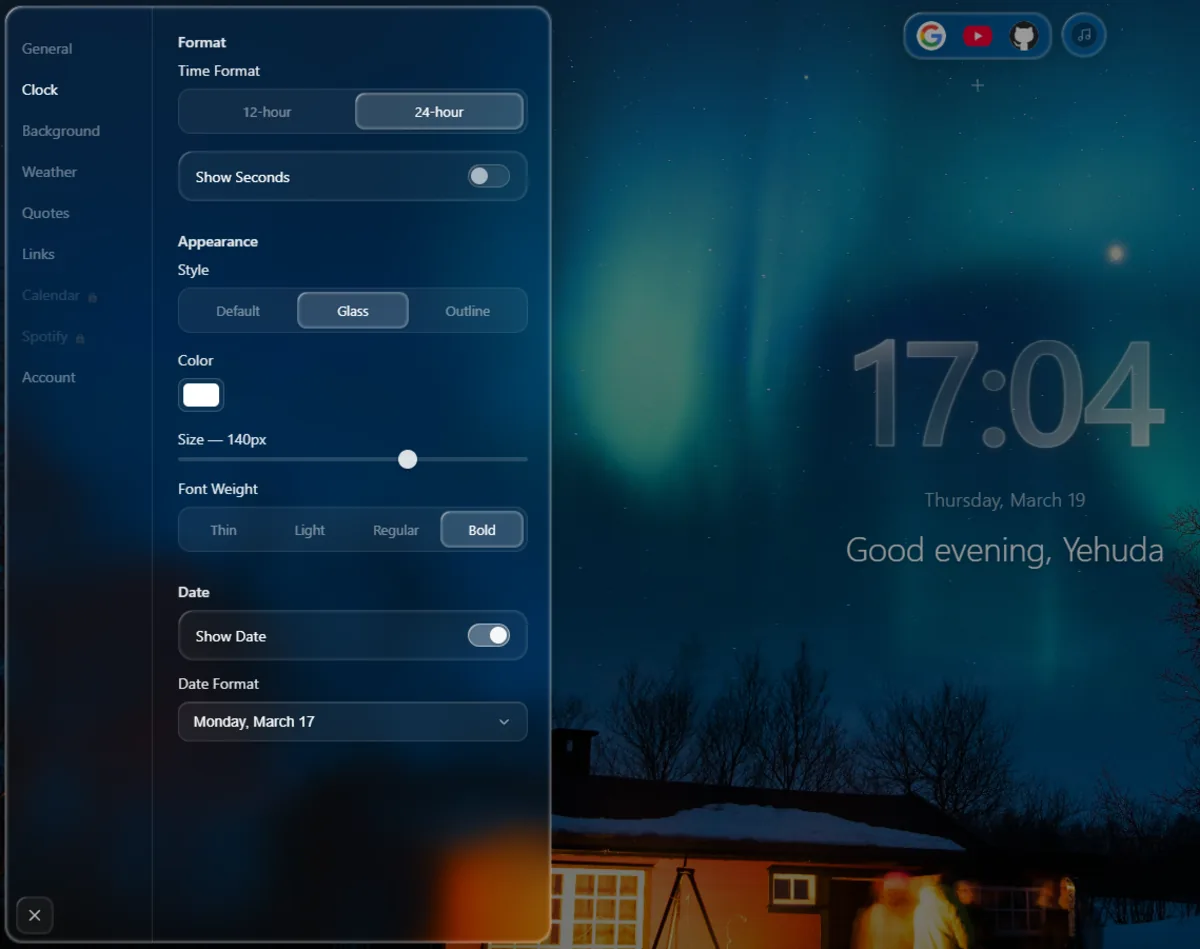
The clock is the centerpiece of your new tab. All of its options are in Settings → Clock:
- Time Format - 12-hour or 24-hour, with optional seconds and a leading zero
- Style - default, glass or outline digits
- Color - pick any color with the color picker
- Size - a slider from 60 to 180 pixels
- Font Weight - Thin, Light, Regular or Bold
- Show Date - the date below the time, in a long, short or numeric format
Under the clock is a greeting that follows the time of day - good morning, afternoon, evening or night - and your name. Click the name to change it, press Enter to keep the change or Escape to cancel it. It starts as Friend; if you sign in to an account with a name while it still says that, your first name replaces it. To hide the greeting, turn off Greeting under Settings → General → Widget Visibility.
How it works#
The clock reads your device's own time and redraws on a timer, so it needs no network and no account. The greeting is chosen from the hour on your device: Good morning from 5:00 to 11:59, Good afternoon from 12:00 to 16:59, Good evening from 17:00 to 20:59, and Good night from 21:00 until 4:59. The date uses your browser's language and regional format, so the order of day and month follows your locale.
Every setting explained#
The Clock tab is split into three groups: Format, Appearance and Date. Defaults are what you get on a fresh install or after resetting settings.
Format#
- Time Format - 12-hour (default) or 24-hour. In 12-hour mode an AM or PM marker appears next to the time. In 24-hour mode hours are always shown with two digits, such as
07:30. - Show Seconds - off by default. Adds
:SSto the time. - Leading Zero (09:05) - off by default. Shows
09:05instead of9:05. This option appears only in 12-hour mode, because 24-hour time already pads the hour.
Appearance#
- Style - default draws solid digits with a soft shadow, glass draws a translucent liquid-glass effect tinted with your color, and outline draws only the outline of each digit in your color.
- Color - white (
#ffffff) by default. It sets the digit color, the glass tint or the outline color, depending on the style. - Size - 120 pixels by default, adjustable from 60 to 180 in steps of 4.
- Font Weight - Thin, Light (default), Regular or Bold.
Date#
- Show Date - off by default. When on, the date appears under the time.
- Date Format - Long (such as Monday, March 17, the default), Short (Mon, Mar 17) or Numeric (03/17/2026). The exact wording follows your browser's locale.
Your name for the greeting is stored under Settings → General → Your Name, and you can also edit it directly on the new tab as described above.
Where your data is stored#
Clock settings are saved in Chrome's extension storage in your browser. Nothing about the clock is sent anywhere unless you have a WindoM account with settings sync, in which case your settings, including the clock section, follow you to other browsers you sign in to. Without an account they stay in your browser. See the privacy policy for the full list of what the extension contacts.
Tips and good setups#
- For a bright photo, try a darker Color or a heavier Font Weight so the digits stay readable. For a dark photo, the default white works well.
- Try the outline style with a thin weight and a single accent color; the Night Owl template does exactly that, and the Inspiration template pairs the glass style with a thin weight.
- Pick 24-hour time with Show Seconds off for the quietest display.
- If you want only the clock on screen, hide the other widgets under Settings → General → Widget Visibility, or apply a ready-made arrangement from Layout templates. Templates can set the clock's style, weight, size and date options.
Common questions#
Why does the greeting say Friend?#
Friend is the default name. Click it and type your own, or sign in to an account that has a name while it still says Friend and your first name replaces it.
Does the clock use my computer's time zone?#
Yes. It shows your device's local time, so it follows any change you make in your operating system.
Troubleshooting#
- The digits are hard to see. Change Color, raise the Font Weight, or switch Style back to default, which adds a shadow behind the digits.
- Leading Zero is missing. It is shown only when Time Format is 12-hour.
- The greeting is gone. Check that Greeting is on under Settings → General → Widget Visibility.
- Nothing helps. See Support.
Related pages#
- Layout templates - preset arrangements that include clock styles
- Change your background - choose the photo behind the clock
- Focus timer - set an intention and dim the tab
Back to the User Guide