Tab Sidebar
Overview#
Move the pointer to the right edge of the new tab and a panel slides out listing every open tab, across all your windows. Click one to switch to it, or click New Tab at the top. Chrome's own pages are left out of the list.
To use the left edge instead, open Settings → General → Tab Sidebar and choose Left.
How it works#
A strip about 15 pixels wide runs along the chosen edge of the new tab. When the pointer enters it, the panel slides out; when the pointer leaves, the panel waits about a third of a second and slides back. While the panel is hidden, a thin marker at the edge shows where to point.
- All windows - the list includes the tabs of every open Chrome window, not only the one you are in.
- The current tab is highlighted, and each row shows the page's icon (or a plain placeholder if it has none) and its title. Hover a row to see the full title.
- Switching - click a row and Chrome activates that tab and brings its window to the front. The panel then closes.
- New Tab - opens a blank tab and closes the panel.
- Always current - the list updates as tabs are opened, closed, switched or change title, so you do not need to refresh it.
- Left out - Chrome's own pages (
chrome://) and extension pages (chrome-extension://) are not listed.
Every setting explained#
There is one setting: Tab Sidebar under Settings → General, with two choices.
- Right - the default. The panel slides out from the right edge.
- Left - the panel slides out from the left edge instead.
The settings panel gives the same hint in short: hover within 15px of the chosen edge to reveal tabs. The choice is saved with your other settings.
Where your data is stored and what leaves your device#
The tab list is read from Chrome through the extension's tabs permission and is shown on the page; it is not sent anywhere. The only thing saved is which side you chose. Titles and addresses of your tabs are never part of your WindoM settings.
See the Privacy Policy for what the extension stores and which services it contacts.
Tips and good setups#
- Choose the edge that is away from your scroll bar or window controls, so the pointer does not trigger the panel by accident.
- The tab sidebar is for browsing your tabs by eye. To find one by name, use Search, which lists matching open tabs first.
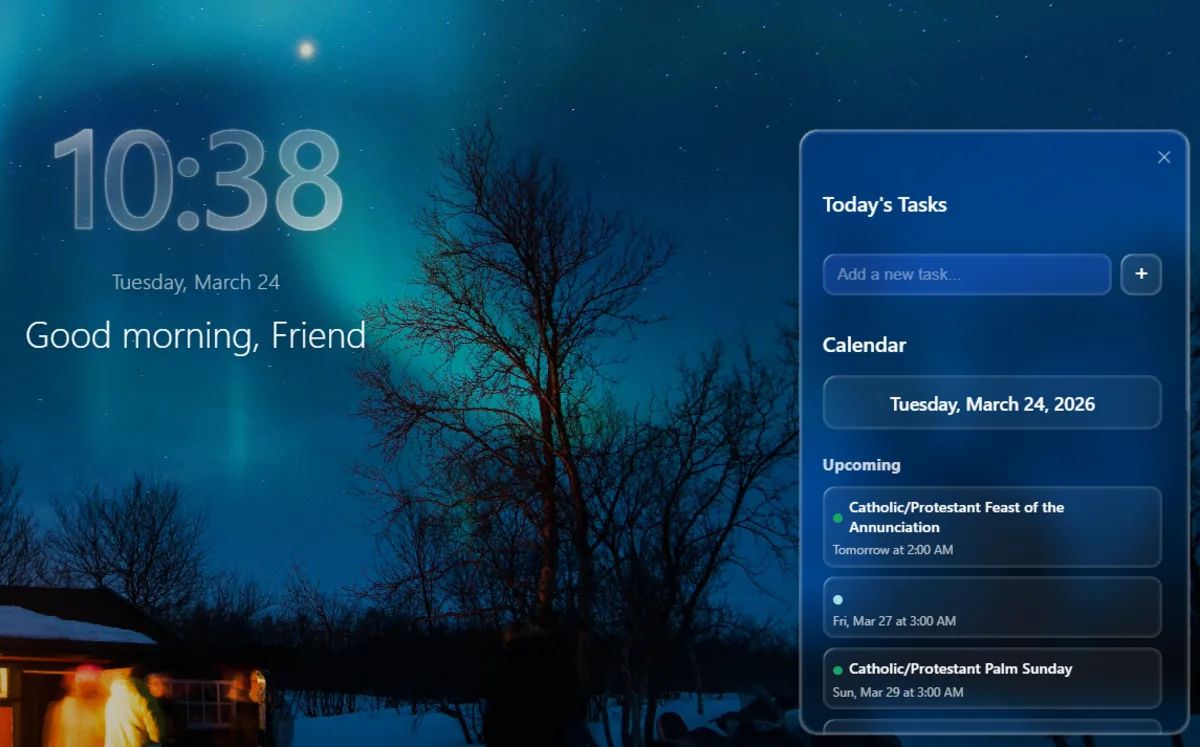
- Do not confuse it with the other panel on the new tab, the one opened with the icon button, which holds Tasks, the calendar and Tab History. That panel closes with Escape or a click outside it; the tab sidebar closes when the pointer leaves.
Common questions#
Does it work on other websites? No. It is part of the new tab page. Search is the feature that also opens over ordinary sites.
Can I turn it off? There is no on/off switch for it. You choose the side, and it only appears when you point at that edge.
Can I close tabs from it? Not from the sidebar. It switches to tabs and opens a new one.
Can I reorder or group tabs? No. The sidebar lists tabs and switches to them.
Troubleshooting#
- The panel does not slide out - move the pointer all the way to the screen edge you chose in Settings → General → Tab Sidebar; the trigger strip is only 15 pixels wide.
- A tab is missing - Chrome's own pages and extension pages are deliberately left out.
- The panel is on the wrong side - choose Left or Right in Settings → General → Tab Sidebar.
Related pages#
- Search - find and switch to a tab by name
- Tab History - recently visited pages
- Keyboard Shortcuts
- Privacy Policy and Support
Back to the User Guide